DIMA 256 Graphic Design

This course has been developed to provide students with an elementary understanding of graphic design elements and principles. Applied projects in typography and publication layout will be completed via the Macintosh.

DIMA 256 Syllabus and Meeting Times

DIMA 256 Design Concepts in Communication

This course has been developed to provide students with an elementary understanding of graphic design elements and principles. Applied projects in typography and publication layout will be completed via the macOS or Windows computers.

Meeting Times and Location Spring Semester 2023:
Monday / Wednesday 3:25 p.m. – 5:00 p.m. OEC 312.

View / Download DIMA 256 Syllabus for Spring Semester 2022:
DIMA 256 Syllabus Keston SP2023

Suggested Texts:
Various online articles and PDFs distributed by the instructor.

Recommended Texts:
Graphic Design Portfolio CC 2018: InDesign, Illustrator and Photoshop Spiral-bound – by Inc. Against The Clock (Author).

Course Weeks:
Week 1 | Week 2 | Week 3 | Week 4 | Week 5 | Week 6 | Week 7 | Week 8 | Week 9 | Week 10 | Week 11 | Week 12 | Week 13 | Week 14 | Week 15

Design Concepts – Week 1

Design is all around us

Session 1: Welcome to Design Concepts in Communication. Today we will start with introductions and then move on to a discussion regarding the syllabus, course content, and a lecture titled, What is Design?.

In order to reach the course objectives as stated in the syllabus we will design several 2D projects, complete exercises, participate in class discussions, complete reading assignments, and take tests. Through these activities you will learn the basics of design, how to compose 2D content, an understanding of typography, how to apply grids, color theory, and photo manipulation.

Session 2: Today we will begin Adobe Illustrator CC demonstrations and discuss the requirements for the first Exercise #1. Following the discussion I will demonstrate Illustrator Lesson 1.

Illustrator Lesson 1: The Basics
Overview of the interface and basic tools
How to open a new document and define its defaults
Using the selection and direct selection tools
Adjusting and applying stroke and fill to an object

Exercise #1: Good versus Bad Logo Design
Due: Session 1, Week 3 (4 points)

Description:
Compose a page in Adobe Illustrator that displays four existing logos for organizations, products, or businesses. Two of the logos will be logos that you consider to be designed well and the other two will be logos that you consider to be designed poorly. Write a paragraph of copy for each logo that explains why you believe the logo is or isn’t well designed or poorly designed. Use concepts from the Gestalt theory of Perception to support your assessments. Note: Dig deep! Don’t just use the first logos you find on Google. Think about business signs near where you live or products that you use regularly. 

Requirements:
1. Find two logos you believe represent good design and two logos you believe represent bad design.
2. Place the good and the bad logos in an 8.5″ x 11″ Illustrator document
3. Write a few sentences explaining why you believe the design is good or bad according to the Gestalt Theory of Perception
4. Upload a PDF of the Illustrator file to the assignment folder on Canvas.

Points Breakdown: (4 points)
1 point is earned for each logo and written explanation

Relevant Resources:
How to make screenshots on Mac OSX
How to make screenshots on Windows

Design Concepts – Week 2

compound_shapes

Session 1: This week we will continue looking at Adobe Illustrator basics. I will also be assigning writing and practical exercises. Today I will be giving another lecture by Professor O’Donnell (with some new content from me) titled, Logos and Sig Cuts. Following the lecture I will demonstrate Illustrator Lesson 2.

Illustrator Lesson 2: Shapes and Compound Paths
Rectangle and ellipse tools Tools for drawing basic shapes
Compound paths (Command+8)
Arranging layers (Bring to front, et al)

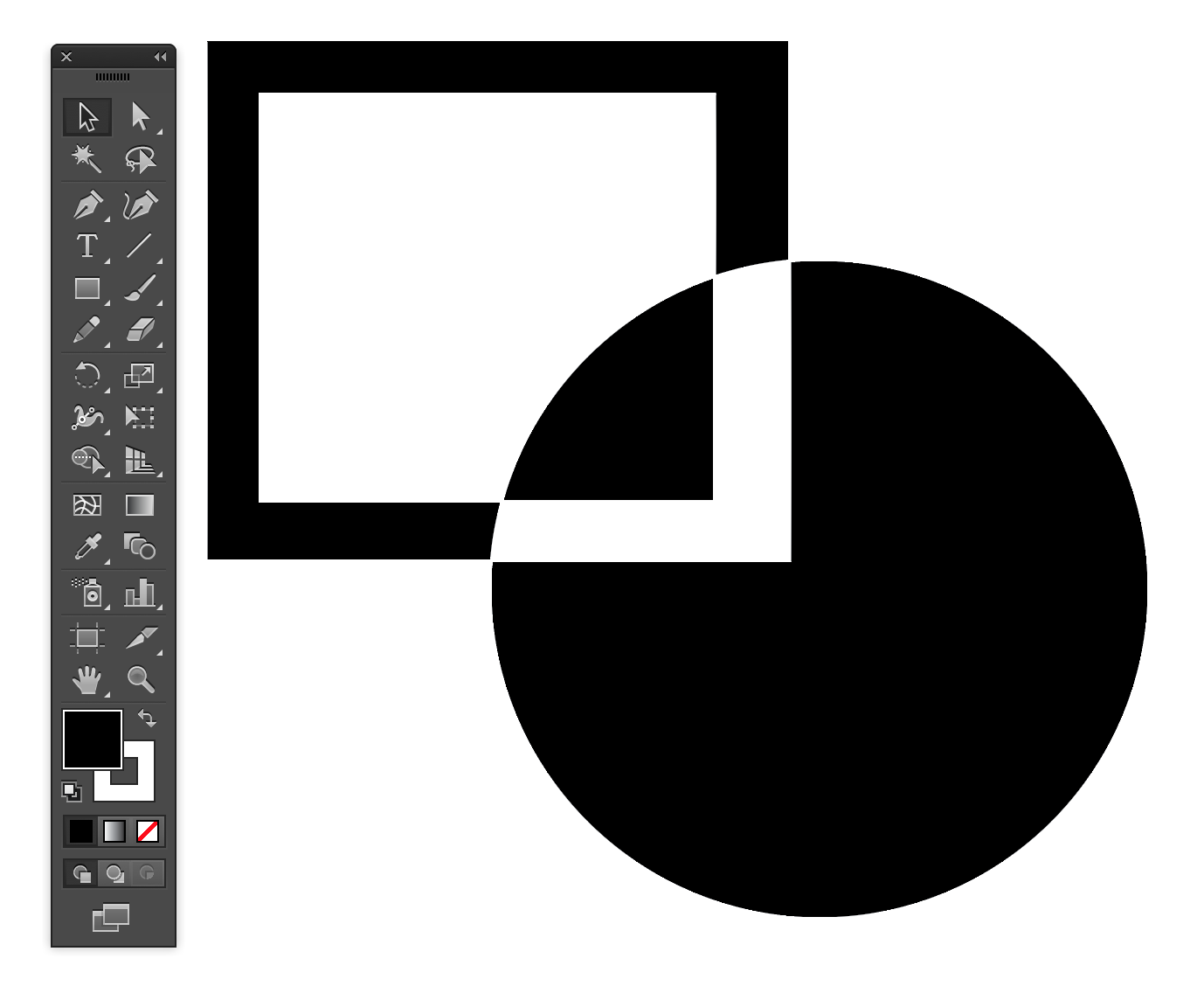
Compound paths let you use an object to cut a hole in another object. For example, you can create a doughnut shape from two nested circles. Once you create a compound path, the paths act as grouped objects. You can select and manipulate the objects separately using the Direct Selection tool or Group Selection tool; or you can select and edit the combined path. See Combine objects using compound paths.

Compound shapes let you combine multiple objects and specify how you want each object to interact with the other objects. Compound shapes are more versatile than compound paths because they provide four kinds of interactions: add, subtract, intersect, and exclude. In addition, the underlying objects are not changed, so you can select each object within a compound shape to edit it or change its interaction mode. – Illustrator Help / Combining Objects

Session 2: Today I will continue demonstrations in Adobe Illustrator. A portion of today’s class will be available for me to help you individually with Illustrator questions.

Exercise #2: Logo Designs Using Your Initials
Due: Session 2, Week 3 (4 points)

Description:
Design a minimum of three logos in Illustrator using your monogram (initials). Follow the example in Illustrator Lesson 3 (Manipulating Text) to gain an understanding of several text manipulation techniques. After you feel comfortable manipulating text begin creating your logos in a new document. Experiment with font family, font style, kerning, vertical and horizontal scale, colors, outlines, and drop shadows. Be adventurous! Try a technique that we did not cover in class. To get started you can sketch some of your ideas before working in Illustrator. Don’t limit yourself to three examples. Try making many more and then include your three favorites in the assignment.

Requirements:
1. Design three logos in Illustrator using your monogram
2. Manipulate the type with at least six techniques to create the logos
3. Try a technique that was not covered in Illustrator Lesson 3
4. Upload a PDF of the Illustrator file to the assignment folder on Canvas

Points Breakdown: (4 points)
4 points may be earned for designing three effective logos

Illustrator Lesson 3: Manipulating Text
Introduction to the text tool
The character palette
Fill and stroke with text
Creating outlines
Download the template text_01.ait

Relevant Resources:
Adobe Illustrator Help
Monogram Logo Examples on Pinterest

Design Concepts – Week 3

Illustration from Wikipedia

Session 1: This week will we continue our Adobe Illustrator lessons and introduce the Design Contest Entry project. Today I will be presenting the third lecture written by Professor Mike O’Donnell titled, The Basics of Composition. Following the lecture I will demonstrate Illustrator Lesson 4.

DUE TODAY – Exercise #1: Good versus Bad Logo Design

Illustrator Lesson 4: The Pen Tool and Bézier Curves
Introducing the pen tool
Drawing point to point
Getting started with Bézier curves

A Bézier curve is a parametric curve frequently used in computer graphics and related fields. Generalizations of Bézier curves to higher dimensions are called Bézier surfaces, of which the Bézier triangle is a special case. In vector graphics, Bézier curves are used to model smooth curves that can be scaled indefinitely. “Paths”, as they are commonly referred to in image manipulation programs, are combinations of linked Bézier curves. Paths are not bound by the limits of rasterized images and are intuitive to modify. – Wikipedia

Session 2: Today we will discuss the requirements for the Design Contest Entry project. Following the discussion I will be demonstrating some more examples of using Bézier curves in Illustrator. Having a good understanding of how to draw using this technique will be an essential skill for Design Contest Entry project and many other tasks that apply to this course.

Quick tip: What is bottom-weighting? Bottom-weighting is when a larger amount of space is used in the bottom of a mat or margin than the top. Often this is expressed using the Golden Mean or ratio (1/1.618034).

Project #1: Design Contest Entry
Due: Session 2, Week 6 (9 points)

Description:
Design and produce an entry for the design contest presented in class. Start by carefully reading and understanding the contest rules and requirements. Next, hand sketch a minimum of six thumbnails to express your concepts. Refine your design based on the discussions and feedback about your thumbnails. Create your design using Adobe Illustrator. Do not use artwork other than your own. This means no clipart, whether or not is available in the public domain. Derivative work may be acceptable as long as it is significantly different from the original piece (i.e. tracing the photo of a monument or landmark). Include examples of your design in use within the context of the contest submission guidelines.

Requirements:
The following requirements are in addition to those specified in the contest submission guidelines:
1. Make your design adaptable to multiple uses (digital, print, name tags, and promotional material)
2. Your design should not lose impact or legibility when substantially reduced in size
3. Consider and apply the design principles we’ve discussed (MAYA, Gestalt theory, etc.)
4. Your design should be reproducible in solid tones using one color (black)
5. No tints, no blends, no gradations are allowed unless specified in the contest guidelines
6. Do not include copyrighted artwork or any clipart, including work within the public domain
7. Make sure all type has been converted to outlines and upload the Illustrator (.ai) file, a PDF version, and a scan of your hand drawn sketches to Canvas by week 6, session 1

Points Breakdown:
Up to 3 points earned for initiating the project with six hand drawn sketches or thumbnails
Up to 3 points earned for writing a clear one page document describing your concept for the design
Up to 3 points earned for creating an attractive design that meets all specified requirements

Illustrator Lesson 5:
Drawing Bézier curves
Practice with Bézier curves
Download the pen tool practice templates

Design Concepts – Week 4

Type_Anatony

Session 1: This week we will continue to hone our skills on Illustrator while beginning to expand our understanding of type. Today I will present another lecture from Professor O’Donnell titled, Type Personality. Following the lecture I will demonstrate the techniques presented in Illustrator Lesson 6.

Illustrator Lesson 6: Tracing a shape from a photo
Selecting a good photo for a template
Using the pen tool to trace the shape
Layering the composition
Applying a gradient to a background

Session 2: After reviewing the requirements for Photo Journal #1, I will be giving you feedback on your Design Contest Entry project thumbnail sketches. In addition I will also help you individually on your Illustrator exercises and projects, and give you feedback on your work in progress.


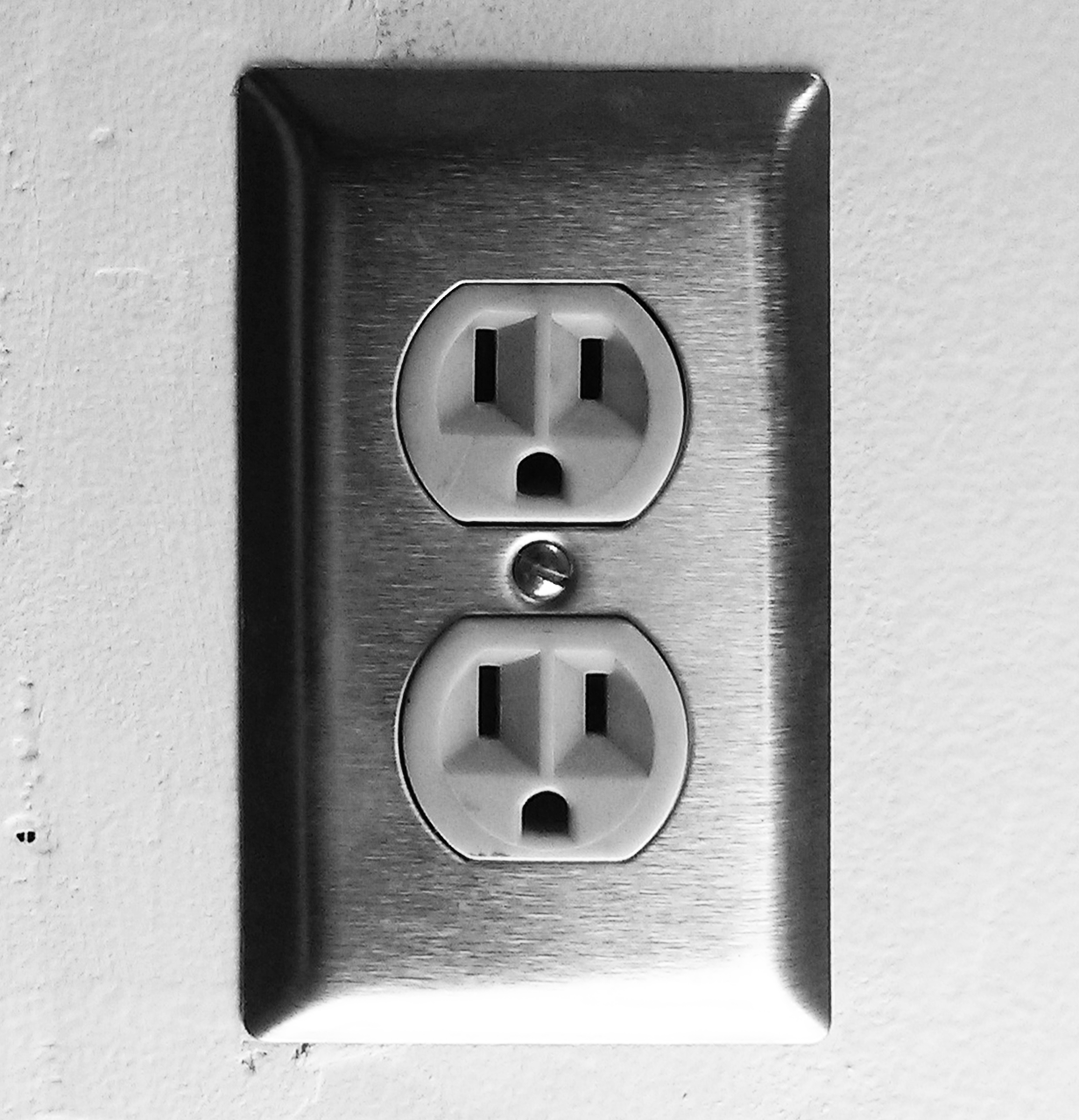
The American power outlet, invented in 1904, is a typical example of pareidolia

Photo Journal #1: Good, Just Okay, and Badly Designed Things
Due: Session 2, Week 5, BEFORE CLASS (4 points)

Description:
Although this is not a class about photography, it is a class about visual communication. Photography is a visual tool that allows us to see things in a different way. It is a technique for communicating ideas that cannot be easily expressed in words. These photo journal exercises are a way to train your eye to see things that you don’t usually consider. When did you last scrutinize an electrical wall outlet? Yet, teams of people have made significant design and engineering choices about that wall outlet. We take for granted the designs of thousands of everyday objects that impact our behavior and they way we live our lives. 

For this first exercise take three photos of things such as objects, street signs, furniture, vehicles, etc. Do not include portraits of people, animals, or landscapes. Focus on objects that you might use. Take one photo of something that you think has an excellent design, another of something you think is functional but not necessarily beautiful, and another of something that you feel is designed poorly. Write one or two paragraphs about each photo explaining why you were compelled to take the shot, and why is it designed well, just ok, or badly. 

Requirements:
1. Design a document that includes three photos with text descriptions
2. Take one photo of something that you think has an excellent design
3. Your second is of something you think is functional but not necessarily beautiful
4. Your third photo is of something that you feel is designed poorly
5. Write one or two paragraphs of text describing each photo as requested above
6. Save your document as a PDF and upload it to Canvas before the due date/time

Points Breakdown: (4 points)
Three photo 2 points
Three descriptions 2 points

Design Concepts – Week 5

Rosetta Stone.JPG
The Rosetta Stone in the British Museum. Photo by Hans Hillewaert.

Session 1: This week we will continue our discussions regarding type. I will also demonstrate the use of the Type on a Path Tool and the Perspective Grid. Today’s lecture written by Professor O’Donnell is titled, Type History and Technology

Session 2: Today your first Photo Journal is due. Let’s look at your journals in class and discuss your photos as a group. Afterward we will cover the requirements for Photo Journal #2.

Photo Journal #2: Textures
Due: Session 2, Week 9 BEFORE CLASS (4 points)

Description:
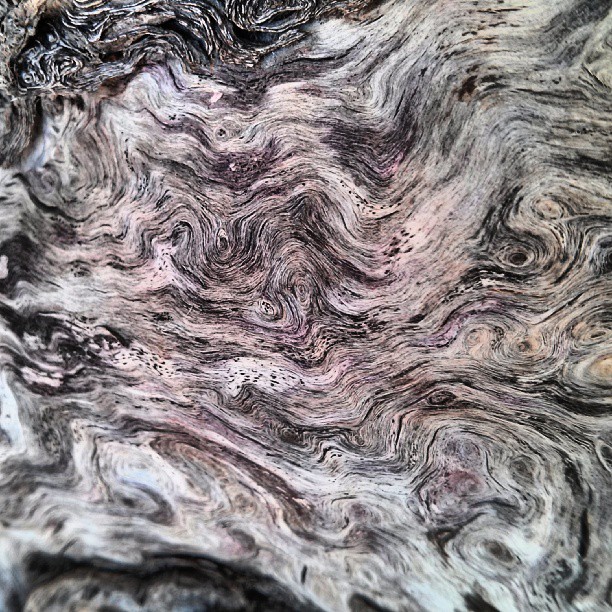
Although this is not a class about photography, it is a class about visual communication. Photography is a visual tool that allows us to see things in a different way. It is a technique for communicating ideas that cannot be easily expressed in words. These photo journal exercises are a way to train your eye to see things that you don’t usually consider. How often do you reflect on the visual nature of different textures? Do you often ponder the predicament of the pavement? Why is tree bark usually brittle and rough? What kinds of textures compliment graphic design?

For the second exercise take three photos of textures. Everything has a texture. For example, brick walls are pretty commonplace, but perhaps you have encountered one where the bricks are worn in an interesting way. Perhaps you are fascinated by the tile or carpeted floor in a theatre or bowling alley. Maybe it is weathered wood grain that attracts your eye. It is possible that you find the look and feel of textiles or leather interesting. Do not include portraits of people, animals, or landscapes. Focus on framing the texture without the context of the object that has the texture. Write one or two paragraphs about each photo explaining why you were compelled to take the shot, and why the texture is interesting to you.

Requirements:
1. Design a document that includes three photos with text descriptions
2. Take three photos of different textures that you find interesting
3. Write one or two paragraphs of text describing each photo as requested above
4. Save your document as a PDF and upload it to Canvas before the due date/time

Points Breakdown: (4 points)
Three photos 2 points
Three descriptions 2 points

Design Concepts – Week 6

Type Layout

Session 1: Today’s lecture will focus on Type Hierarchy. Following the lecture I will demonstrate Illustrator Lesson 7: Type Layout.

Illustrator Lesson 7: Type Layout
Placing text from external documents
Setting up type in columns with gutters
Using the Character pallette
Using the Paragraph pallette
Storing paragraphs and character styles

InDesign CC

Session 2: Today we will begin InDesign lessons. InDesign has several similarities to Illustrator, but it meant to be used for laying out multiple page print documents, while Illustrator allows artist to create drawings and illustrations. I’ll also be covering the details for the next project.

Project 2: Business Card, Letterhead, and Envelope (9 points)
Due: Session 2, Week 8

Description
Each day we encounter examples of information design: charts, diagrams, graphs, instruction manuals, maps, schedules and traffic signs. Among the most common are business identity sets including a business card, letterhead, and envelope designs. A well designed business identity gives potential customers and employers confidence in the organization or individual. It relies on a simple and attractive logo, clear typography, appropriate use of color, and a well-established type hierarchy. Design a business card, letterhead, and envelope for yourself to present to potential employers. Browse examples on the web for inspiration. You may use the monogram exercise for your logo, but put effort into improving your original work. This project will allow you to develop an awareness of typographic attributes and visual hierarchies as well as understand the significance of contrast, proportion, scale and space.

Requirements
1. Define the design problem and objectives, considering how the text might be used.
2. Establish X and Y axes, then define your columns using ruler guides.
3. Create basic text styles that will help organize the text in a logical manner.
4. Use typeface (regular, bold, italic and so on), type size, paragraph spacing, indents, rules, dingbats and tabs to create your hierarchy.
5. All typography must be formatted without repeated invisible characters (hard return, soft return, tab, word space). In other words, on the Paragraph panel apply space with the space before or space after functions.
6. Select absolute leading values; do not use auto leading.
7. The final product must fit on a standard sized business card, one letter-sized page, and one #10 business sized envelope (9.5″ x 4.125″).
9. Do not alter horizontal or vertical scaling for type; keep all at 100 percent.
10. Place your designs in a new document to show them all together with drop shadows.
11. Upload all four Illustrator documents to Canvas by session 2 of week 8.

Point Breakdown
3 points may be earned for your typographic aesthetics and hierarchy
3 points may be earned for your use of space and information design
3 points may be earned for your use of color, contrast, scale, and proportion

Download an Illustrator Business Card Template

InDesign Lesson 1: The Basics
Overview of the tools
How to use text boxes
Adding placeholder text
Understanding how text flows
Using TypeKit

Design Concepts – Week 7

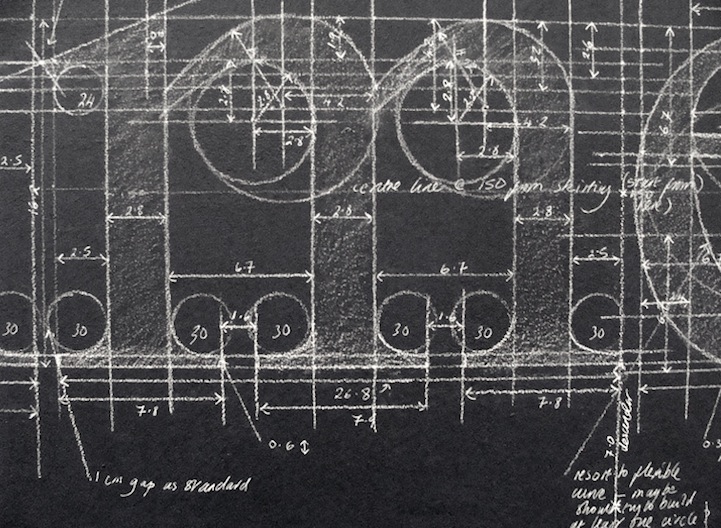
Meticulous Blueprint Chalk Typography by Liz Collini

Session 1: Today’s lecture written by Professor O’Donnell is titled Measuring and fitting type. Following the lecture we will complete Exercise #3 Measuring and Fitting Type (in class).

InDesign Lesson 2: Styles and Grids
Setting up paragraph styles
The baseline grid

Exercise 3: Measuring and Fitting Type (in class)
Due: Session 2, Week 7 (4 points)

Description:
Use InDesign to design a five-day (Monday through Friday) activity schedule for yourself. Identify regular academic and recreational activities (classes, homework, meals, meetings, sports), day and time. Think about how a calendar structures time in space and creates patterns of events. Clarity and usability are the primary criteria for a well-designed page.

Requirements:
1. Select one type family. You may also use dingbats or wood ornaments.
2. You may use several text boxes to place text on the grid you design.
3. All typography must be formatted without repeated hard returns, soft returns, tabs or spaces; use the indent and spacing capabilities of InDesign.
4. Select absolute leading values; do not use auto leading.
5. Do not alter horizontal or vertical scaling for type; keep all at 100 percent.
6. Upload the InDesign document and a PDF version to Canvas by session 2, week 7.

Measuring and Fitting Type Details

Points Breakdown: (4 points)
4 points may be earned for schedules that meet the requirements above

Session 2: Studio time is available today so that I may offer help and feedback on your InDesign projects and exercises.

Design Concepts – Week 8

Session 1: Today I will be covering the requirements for the Booklet Layout project. Following the discussion I will be looking at your Business Identity projects to give you feedback and answer any questions you’re having.

Project 3: Program or be Programmed Booklet Layout (10 points)
Due: Session 2, Week 11

Description
Typography, the meaningful arrangement of letterforms, is an essential component of design. In this assignment, we’ll study traditional principles of typographic design. The key concept for this exercise is to use page proportion and appropriate typography to create a composition that serves and complements the content. The final product will be a booklet containing a cover that you design, a title page, table of contents, and chapter 1 (not the whole book) of Program or Be Programmed by Douglas Rushkoff. Your cover composition will wrap around your booklet.

Downloadable Assets
Chapter 1 from Program or be Programmed by Douglas Rushkoff (for copy and paste)
Chapter 1 from Program or be Programmed by Douglas Rushkoff (.pdf example only)

Requirements
1. All should be reproducible in black and white, although color is acceptable for the cover
2. Before you do anything, download the text and read it!
3. Define text-block proportions that serve the text, and provide a comfortable setting for long-distance reading
4. Choose typography to express the internal organization of the text
5. Structure a relevant and understandable typographic hierarchy within your information design
6. Choose a type family appropriate for the content
8. Demonstrate basic document construction and page composition using Adobe InDesign
9. Produce polished text using correct special characters and character encoding
11. Vary typefaces within a type family to create contrast, order, and hierarchy
12. Printing and assemble the booklet to evaluate your work
13. Submit your .ai file and PDF to Canvas by session 2 of week 11

Point Breakdown
4 points may be earned for your attention to information design and type hierarchy
3 points may be earned for your document construction and typographic choices
3 points may be earned for your front and back cover composition

Session 2: Today I will be demonstrating the techniques required to complete the Booklet Layout Project. This includes setting up master pages, numbering pages, facing pages, asymmetrical margins, pasting across multiple pages, placing images, and using the text wrap panel. Following the InDesign lesson I will be covering the requirements for the last in our series of photo journal exercises.

InDesign Lesson 3.0: Placing Images and Using Text Wrap
Creating a new half-letter document with facing pages
Using paste then shift+click force all the pages necessary
Reviewing paragraph styles
Separating text from the main content
Creating footnotes and superscript

Photo Journal #3: Typography
Due: Session 2, Week 11 BEFORE CLASS (4 points)

Description:
Although this is not a class about photography, it is a class about visual communication. Photography is a visual tool that allows us to see things in a different way. It is a technique for communicating ideas that cannot be easily expressed in words. These photo journal exercises are a way to train your eye to see things that you don’t usually consider. Type, letterforms, and iconography surround us constantly, yet how frequently do we analyze the shapes, lines, and curves that inform us about everything we encounter or learn about? 

For this first exercise take a total of four photographs of type, letterforms, and/or icons exhibited in public spaces. Street signs are the obvious examples, but try to find uses that stand out in one way or another. Perhaps it is a message scrawled on a protesters sign, graffiti under a bridge, or a concert poster plastered to the wall of a dilapidated building. Remember that your living space is not public space! Get out of your comfort zone and find shots of things you might not otherwise encounter. Write one or two paragraphs about each photo explaining why you were compelled to take the shot, and why you think the designer chose the typeface or style that they did.

Requirements:
1. Design a document that includes four photos with text descriptions
2. Take four photos that are examples of typography, letterforms, and/or icons
3. Fins your examples in public spaces (get out of the house and off campus!)
4. Write one or two paragraphs of text describing each photo as requested above
6. Save your document as a PDF and upload it to Canvas before the due date/time

Points Breakdown: (6 points)
Four photos 3 points
Four descriptions 3 points

Design Concepts – Week 9

Screen Shot 2015-11-03 at 3.19.23 PM

Session 1: Today’s lecture written by Professor O’Donnell is on Page Proportion. Following the lecture I will be demonstrating InDesign Lesson 3. Mainly we will be covering the concept of master pages and how they can be applied to the consistency of a multi-page print document.

InDesign Lesson 3.1:
Placing content/images using command/control+D
Using the Text Wrap panel to flow text around images
Using master pages to apply page numbers automatically

READINGS, ACTIVITY

Otl Aicher from Ian Crombie on Vimeo.

Session 2: Today’s demo will wrap up everything necessary to complete the Booklet Project. Studio time will be available for questions and feedback on your work in progress.

InDesign Lesson 4:
Character styles
Lists
Paragraph rules
Text Wrap
Contour Wrapping

Following today’s InDesign lesson, let’s take a look at your Photo Journal #2. I am excited to see what textures you decided to photograph and learn why.

Design Concepts – Week 10

Screen Shot 2015-11-09 at 10.44.27 AM

Session 1: Today I will be presenting a lecture on Page Architecture by Professor O’Donnell. Following the lecture I will discus the requirements for Project 4: Screen Design Mockups.

Project 4: Screen Design Mockups
Due: Session 2, Week 13

Description:
Produce a set of design mockups for an informational web application that about cycling. Use Wikipedia to gather your content. Draw from the web for images and inspiration. Choose a minimum of six cycling categories as items in the navigation bar. Your mockups will include a universal navigation system, text content, images, and a layout scheme. Use a grid system for the layout and content. Include a header, footer, and content areas within the layout. Select an appropriate color scheme and apply it to the mockups. Use graphics, a header logo, and typography that highlights the subject matter. Design three versions of the mockup. One optimized for mobile, another for tablets, and the third for laptop/desktop dimensions.

Content on Cycling from Wikipedia

Requirements:
1. Use a grid system in InDesign to create web mockups for mobile, tablet, and desktop devices
2. Design your mockups with user experience (UX) principles in mind
2. Use Illustrator to create a logo for the mockups
3. Collapse universal navigation for the mobile and tablet layouts to an expandable icon
4. Use appropriate graphics, colors, and typography for the web application mockups
5. Include header, footer, sidebar, and main content areas
6. Float appropriate images within the text content
7. Adjust and resize the layout and content for each device
8. Outline all the fonts and export each mockup as a PDF
9. Compress all the PDFs and .indd files into a zip and upload to Canvas by session 2 of week 13

Points Breakdown:
3 points may be earned for the design of your mockups and attention to UX principles
3 points may be earned for appropriate color scheme and graphic design choices
4 points may be earned for the web typography, logo, and consistency across devices

Relevant Resources
Media Queries
Creating Wireframes And Prototypes With InDesign
The S.M.A.R.T. User Experience Strategy

Session 2: Today we will discuss the user experience (UX) criteria for interactive web applications. One set of criteria that I find particularly useful is called SCANMIC. This acronym stands for screen design, content, accessibility, navigation, media use, interactivity, and consistency. An in depth article about SCANMIC is available here:

The SCANMIC Usability Criteria

Following the discussion I will be demonstrating how to get started on the Screen Design Mockups.

InDesign Lesson 5
Setup for web design mockups
Create a 12 column grid system
Using the drawing tools
Alternate and Liquid Layouts

Design Concepts – Week 11

color

KUST_LOGO_2014_White

Session 1: Today I will be presenting part one of a lecture on color by Professor O’Donnell. Following the lecture we will discuss the requirements for the concept summary. The remainder of the class will be available as studio time.

Session 2: Today we will continue with part 2 of the color discussion. Following the discussion we’ll look at the requirements for the final project. After the discussion I will demonstrate some of the basic features in Photoshop. During the last 30 minutes of class I will give you feedback on your work so far on the Screen Design Mockups.

Where to find 3D models to use in Adobe Dimension
TurboSquid
Thingiverse
SketchFab

Project 5: Physical Package Design
Due: Session 2, Week 14

Description:
Use the skills you have learned in Illustrator, InDesign, and Photoshop to produce the package design for a physical product. Physical media including CD, DVD, or game boxes are acceptable examples. You may also consider creating the packaging for food, beverages, cosmetics, electronics, or toys. The product needs to be either a mock product that you invent, or a redesign of packaging for a product that does not have broad distribution (i.e. a local business that is just getting started).

Use type on your packaging in ways that emphasize personality. Use a workhorse typeface for non-branding related type such as ingredients, addresses, website, and other info. The branding on the containers should not be designed for “long-distance” reading, but instead be selected to illustrate the personality of the product and capture the attention of your audience. Apply Raymond Loewy’s design philosophy of MAYA: Most Advance Yet Acceptable. “Acceptable” is judged by the audience, so be sure to research who the product is for.

Study other packaging designs by measuring the type and column widths. Figure out what sort of grid they used. If you find something you like and you believe it is appropriate for your project, borrow from it. However, use only original imagery for the project..

Requirements:
1. Use a grid system in InDesign to create the layout for your package design.
2. Design the artwork for the top, front, back, and sides using Illustrator or Photoshop.
3. Prepare any vector art such as logos or sigcuts in Illustrator.
4. Use typesetting that attracts the audience on the fthe packaging.
5. Use more readable “workhorse” typefaces for the ingredients, instructions, urls, etc.
6. Browse online package design templates to decide on the format for the design.
8. Compress all the PDFs and .indd files into a zip and upload to Canvas by session 2 of week 14

Points Breakdown:
3 points may be earned for the design and personality of your package design
3 points may be earned for the use of color and original imagery
4 points may be earned for the typographic choices and vector assets (logos, etc.)

Relevant Resources:
Adobe Package Design Templates
Adobe Dimension
Vecteezy Package Design Templates
Noiseland Templates (vinyl)
Copycats Media Templates (CDs/DVDs)

PhotoShop Lesson 1: The Basics
Overview of the interface and basic tools
How to open a new document and define its defaults
Using the selection and direct selection tools
Adjusting and applying stroke and fill to an object

Design Concepts – Week 12

Screen Shot 2015-11-24 at 2.55.27 PM

Session 1: Today let us start to examine a few potential templates for packaging design. During an in class demonstration I will load in several templates and experiment with setting up the grid for type and image placement.

Session 2: Today I will be creating another lesson for package design using InDesign and/or Adobe Dimension. After the lesson let’s take a look at your submissions for Photo Journal #3 (Type).

Design Concepts – Week 13

Screen Shot 2015-12-01 at 2.05.56 PM

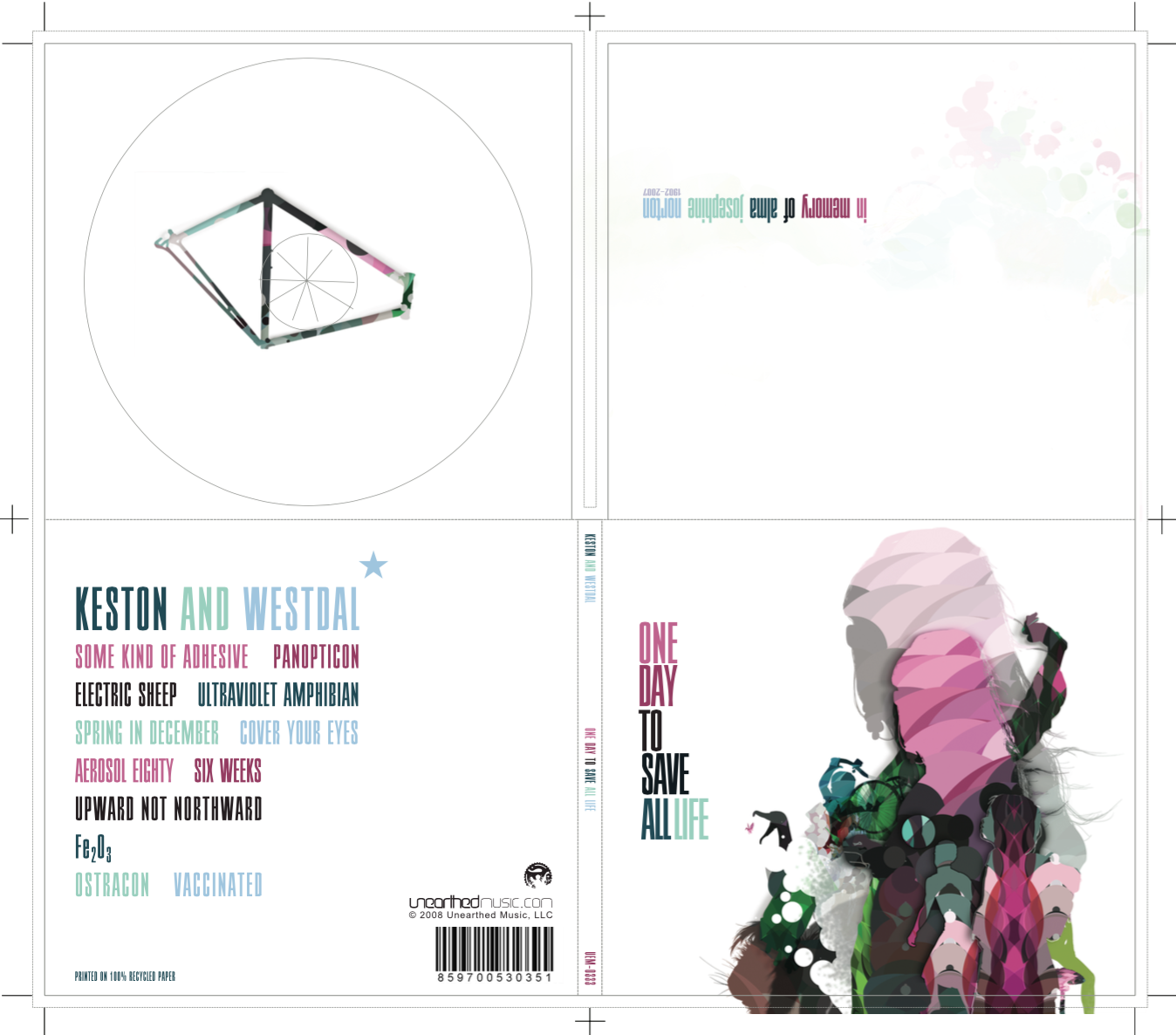
Session 1: Today we will take another look at templates for CD packaging. I will also show the assets by artist Benjamin Montag for One Day to Save All Life by Keston and Westdal. Today during studio time I will take questions and offer feedback on your Screen Design Mockups, which are due next class.

Session 2: Today I will be giving you the take home final exam due Session 2, Week 15. The Screen Design Mockups project is also due by the end of the day today.

The following articles offer some interesting ways you might use Photoshop to manipulate a photograph to create the art for the CD Packaging Design project.

Photoshop Photo Manipulation Techniques
Experimental Photographic Techniques

Design Concepts – Week 14

Session 1: This week will be dedicated to studio time as well as demos that apply to your work as requested. Please be prepared by requesting a demonstration that addresses something that you’re working on for your CD packaging project.

Session 2: Final group critiques are scheduled for today. Any remaining time will be available to ask questions and get feedback on your CD packaging project before final presentations.

Design Concepts – Week 15

Final presentations will commence on Wednesday, May 17th, 2023 from 1:30 to 3:30pm in OEC 312. Everyone is required to attend. Missing the final presentations will apply to your grade as an unexcused absence and you will not earn the 5% presentation points.

1. Introduce yourself (major, interests, etc.)
2. Describe the concept for your CD packaging project
3. Show us all the parts and discuss the techniques you used
4. Feedback

Thanks everyone and have a great holiday!

DIMA 256 Lessons

Illustrator Lesson 1

Illustrator Lesson 2

Illustrator Lesson 3

Illustrator Lesson 4: The Pen Tool Part 1

Illustrator Lesson 5: The Pen Tool Part 2

Illustrator Lesson 5: Tracing a Photo / “Image Trace”

Photo Journal #1 / Contest Entry Details

Click here the view the Zoom recording

Type on a Path + Perspective Grid

Week 6 Session 2 (Type Formatting in Illustrator)

Week 6 Extra (Paragraph Styles in Illustrator)

InDesign Activity Schedule

How to Make a Business Identity Composite

InDesign: Booklet Layout (Getting Started)

Using Parent Pages to Display Page #’s

Creating Screen Design Templates in InDesign

Importing 3D Models into Adobe Dimension