Session 1: This week we will continue looking at Adobe Illustrator basics. I will also be assigning writing and practical exercises. Today I will be giving another lecture by Professor O’Donnell (with some new content from me) titled, Logos and Sig Cuts. Following the lecture I will demonstrate Illustrator Lesson 2.
Illustrator Lesson 2: Shapes and Compound Paths
Rectangle and ellipse tools Tools for drawing basic shapes
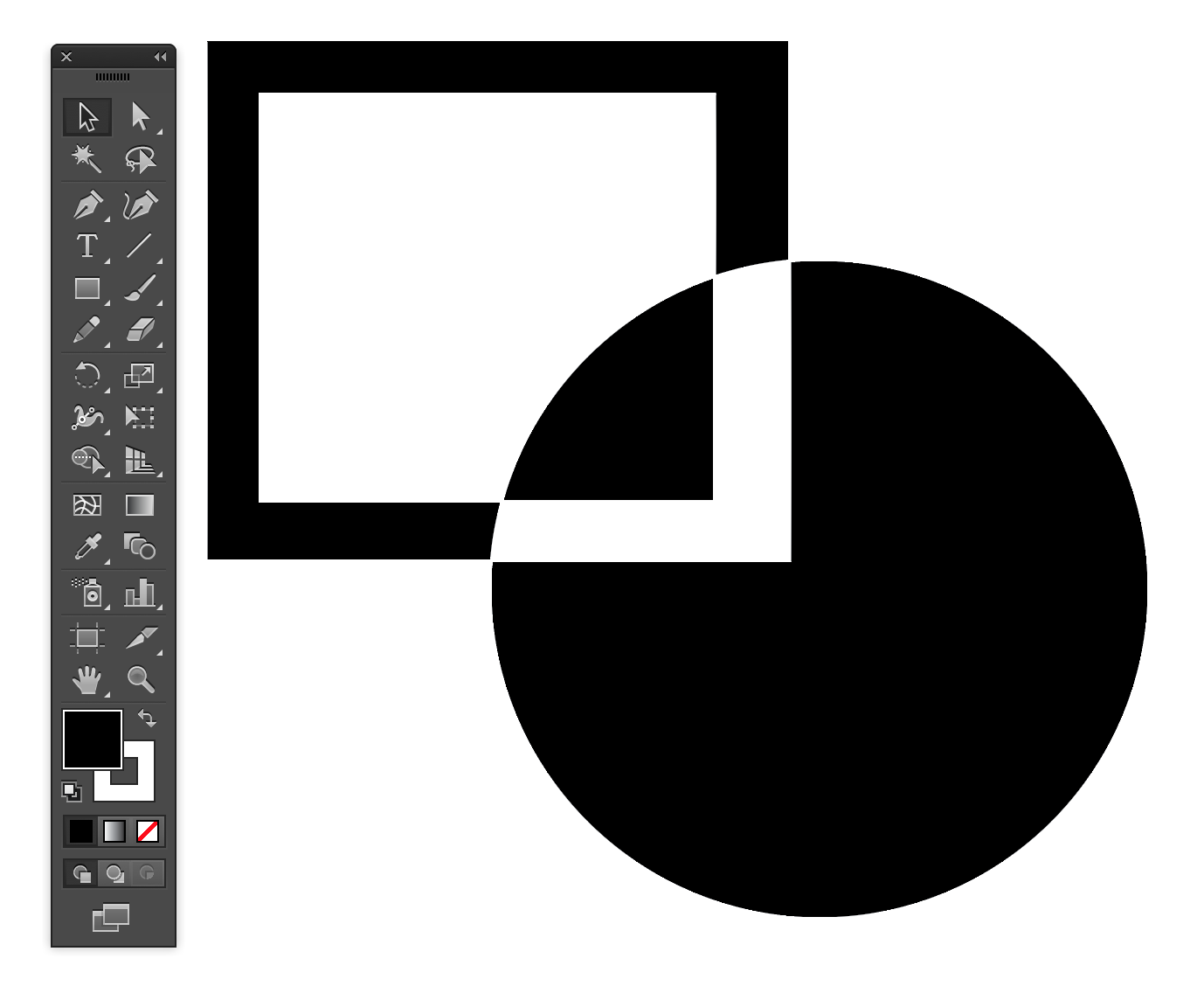
Compound paths (Command+8)
Arranging layers (Bring to front, et al)
Compound paths let you use an object to cut a hole in another object. For example, you can create a doughnut shape from two nested circles. Once you create a compound path, the paths act as grouped objects. You can select and manipulate the objects separately using the Direct Selection tool or Group Selection tool; or you can select and edit the combined path. See Combine objects using compound paths.
Compound shapes let you combine multiple objects and specify how you want each object to interact with the other objects. Compound shapes are more versatile than compound paths because they provide four kinds of interactions: add, subtract, intersect, and exclude. In addition, the underlying objects are not changed, so you can select each object within a compound shape to edit it or change its interaction mode. – Illustrator Help / Combining Objects
Session 2: Today I will continue demonstrations in Adobe Illustrator. A portion of today’s class will be available for me to help you individually with Illustrator questions.
Exercise #2: Logo Designs Using Your Initials
Due: Session 2, Week 3 (4 points)
Description:
Design a minimum of three logos in Illustrator using your monogram (initials). Follow the example in Illustrator Lesson 3 (Manipulating Text) to gain an understanding of several text manipulation techniques. After you feel comfortable manipulating text begin creating your logos in a new document. Experiment with font family, font style, kerning, vertical and horizontal scale, colors, outlines, and drop shadows. Be adventurous! Try a technique that we did not cover in class. To get started you can sketch some of your ideas before working in Illustrator. Don’t limit yourself to three examples. Try making many more and then include your three favorites in the assignment.
Requirements:
1. Design three logos in Illustrator using your monogram
2. Manipulate the type with at least six techniques to create the logos
3. Try a technique that was not covered in Illustrator Lesson 3
4. Upload a PDF of the Illustrator file to the assignment folder on Canvas
Points Breakdown: (4 points)
4 points may be earned for designing three effective logos
Illustrator Lesson 3: Manipulating Text
Introduction to the text tool
The character palette
Fill and stroke with text
Creating outlines
Download the template text_01.ait
Relevant Resources:
Adobe Illustrator Help
Monogram Logo Examples on Pinterest