DIMA 358 Web Design

DIMA 358 Syllabus and Meeting Times

This course teaches students HTML and web content production. The goal is to help students develop strategies for writing, editing, designing and publishing web applications that meet professional standards.

Meeting Times and Location Fall 2025:
Tuesday / Thursday 9:55 – 11:35
Location: SCC 219

View / Download Syllabi:
DIMA 358 Web Design Syllabus Fall 2025

Recommended Texts:
Duckett, J. (2011) HTML and CSS: Design and Build Websites. Wiley.
Teague, J. (2009) Speaking in Styles: Fundamentals of CSS for Web Designers. Berkeley: New Riders.
Various online articles and PDFs distributed by the instructor.

Course Weeks:
Week 1 | Week 2 | Week 3 | Week 4 | Week 5 | Week 6 | Week 7 | Week 8 | Week 9 | Week 10 | Week 11 | Week 12 | Week 13 | Week 14 | Week 15

Web Design – Week 1

Unearthed Music Landing Page

Session 1: Welcome to Web Design! Today we will start with introductions, review the syllabus, and discuss the course objectives. Our first project will be a simple one page layout called the Project Portal. The document layout will use “normal flow” to present a short biography and links to all of your upcoming projects. LECTURE: Finally we will discuss the anatomy of HTML tags, the structure of HTML documents, and normal flow.

Important: Normal flow is a term used to describe how an HTML document behaves when none of the elements within the document have been given values for the CSS position or float attributes. In this case all block-level elements stack vertically from top to bottom in contrast to inline-level elements that stack horizontally from left to right.

Assignment 1: “Project Portal” Static Web Page
Due: Session 1, Week 3 (10 points)

Description:
This assignment is an introduction to the most basic concepts of building a web page (i.e. normal flow, hyperlinks, file management, creating sub-directories, and basic CSS). It is also the mechanism through which I will grade all of your subsequent assignments. start by creating a home directory titled DIMA358. Next, create four new directories within your DIMA358 labelled for each upcoming project. You will then build one web page with the filename “index.html” with links to the new directories you created. Copy the entire environment (directory structure and files) to your personal webspace.

Requirements:
1. Build an environment for your Project Portal and upcoming assignments
2. The environment should contain all of the subdirectories necessary
3. Create a single project portal page in the DIMA358 directory called “index.html”
4. Include a header, biography, images, and an unordered list with links to all upcoming projects
5. Upload your project portal to your student webspace (watch video demo for details on how to do this)

Points Breakdown:
2 points are awarded for coding headers, lists, links, images, and divs within the document
4 points are awarded for illustrating normal flow layout, CSS styles, and basic typesetting
4 points are awarded for preparing readable, accessible, and well design content for the page

Session 2: We will build all of our projects and exercises using an IDE called VS Code (Visual Studio Code). We’ll be using VS code for its text editing function that allow the user to enter plain text into a document. All computer code is made up of instructions written in plain text. Plain text files typically use the ASCII format. The filename’s “extension” or suffix (.txt, .html, .css, .rtf, .csv, etc.) is used to explain to the user and the computer what the file is meant to do. An FTP client application, like Cyberduck allows us to transfer files to a web server so that they are accessible over the internet.

There are many tools that will automatically generate the code necessary to create a web document, but these “Authoring” tools (FrontPage, Dreamweaver, etc.) have limitations and the code that is generated can be difficult to read for human beings. Using a text editor helps us learn what the code does and allows us to write it in such a way that you and other people can read and understand it. It also allows for the possibility of mistakes to be made and in-turn you will learn about troubleshooting techniques. Mistakes are good!

We learn wisdom from failure much more than from success. We often discover what will do, by finding out what will not do; and probably he who never made a mistake never made a discovery
― Samuel Smiles

Relevant links:
VS Code
VS Code Basics
FileZilla FTP Client*
*Make sure you download the Client and not the Server

Web Design – Week 2

gmofg

Session 1: Check announcements on Canvas for your assigned week for the Interactive Design Research Skills assignment. This participation assignment requires each student to research and comment about the topic(s) for a particular week of the class. Afterward we will have a discussion regarding the techniques necessary to complete the “Project Portal.” This will include “normal flow” or block level layout: headers, content areas, and footers. LECTURE: We will also look at lists, links, images, “box model”, and the anatomy of CSS rules.

Another important consideration is file management and file naming conventions. Following the rules below for all of the projects and exercises this semester will increase your chances of success:

1. Keep it simple yet organized: use sub-folders only when necessary
2. Do not use special characters or punctuation (!@#$%^&*+/(){}[]) in folders or filenames
3. Only use lowercase letters, numbers, hyphens between words, and a dot before the extension (contact-form.html)
4. Be semantic: your files and folder names should describe what they contain
5. Separate web files (html, css, jpeg, gif, png, pdf) from assets (ai, psd, doc, tiff)
6. Backup your files in a minimum of three places!

Assignment 2: Interactive Design Research Skills
Due: Before Session 2 of the Assigned Week (5 points)

Description:
Each student will be assigned one of thirteen weeks (3-13) from the class content. The week assignments can be found under Announcements on Canvas. The student is required to research the content for their week using Google and find three current and relevant web-based articles, not already included in the class content, about the subject(s) contained within their assigned week. The link to each article and a 1-3 sentence description must be entered as a single comment on the class website before session 2 of the assigned week.

Requirements:
1. Enter one comment with three links and descriptions for the assigned week
2. Make sure the links are current, relevant, and not previously included
3. Enter your comment 24 hours before session 2 of the assigned week for approval

Points Breakdown:
1 point is awarded for each relevant link
1 point is awarded for an accurate description of the article

Relevant resources:
Selectutorial – CSS selectors
W3 Schools – The CSS Box Model
Get More Out of Google [infographic]

<!DOCTYPE html>
<html>
<head>
  <!-- this is an HTML comment -->
  <meta charset="UTF-8">
  <title>Title of the page goes here<title>
</head>
<body>
  <h1>h1 is the largest of the six header tags</h1>
  <p>All content is contained in the body tag</p>
</body>
</html>

Session 2: In-class demonstrations will center on completing the layout, techniques, and requirements to finalize the “Project Portal”. This will include a demo of CSS rules, “box model”, review of links, lists, images, headers, and a demonstration on how to use an FTP client (FileZilla) to add files to your student webspace. A portion of class time will be available for lab time.

Relevant Resources:
W3Schools CSS Tutorial
W3Schools HTML4 and HTML5 Tutorial

Web Design – Week 3

Session 1: After a brief presentation of the Project Portal assignments we will discuss the requirements for the Technical Exercise #1 Image Optimization. If time permits I will also demonstrate the techniques required to complete the exercise.

Technical Exercise 1: Image Optimization
Due: Session 1, Week 4 (3 points)

Download the Exercise Assets

Description:
Use Photoshop or GIMP to optimize camera raw images as JPEGs and display them within a single web document. You may use camera raw images of your own, or you may use the provided camera raw images. Next, in the same document display some type converted to graphics using the transparent GIF format and the transparent PNG-24 format. Use a background color other than white and a typeface with plenty of curves to illustrate the advantage of alpha over index transparencies. Finally, experiment with an image of your own to create a 2 by 2 grid of 4 posterized images as an homage to pop artist, Andy Warhol. Create the posterized effect by manipulating the GIF color table in the “Save for Web” dialog box within Photoshop.

Free Photoshop alternative GIMP can also be used to produce this exercise. This video describes how to optimize images for the web using GIMP:
https://youtu.be/B8BUMHuG8Qk

Required reading:
What’s the difference between a jpg, gif, png and svg?
What’s a pixel on screens and in digital images?

Requirements:
1. Create a single web page that documents the tasks listed below
2. Optimize the provided raw images into an appropriate web format
3. Display type converted to graphics using both GIF and PNG-24 formats
4. Produce a grid of your own images manipulated via the GIF color table
5. Add the files and folders to your environment and copy them to your webspace
6. Upload your exercise before class starts on session 1 week 4.

Points Breakdown:
1 point awarded for effectively optimizing the raw images into an appropriate web format
1 point awarded for using type converted to graphics to illustrate the advantage of alpha transparency
1 point awarded for creating a grid of experimental images by manipulating the GIF color table
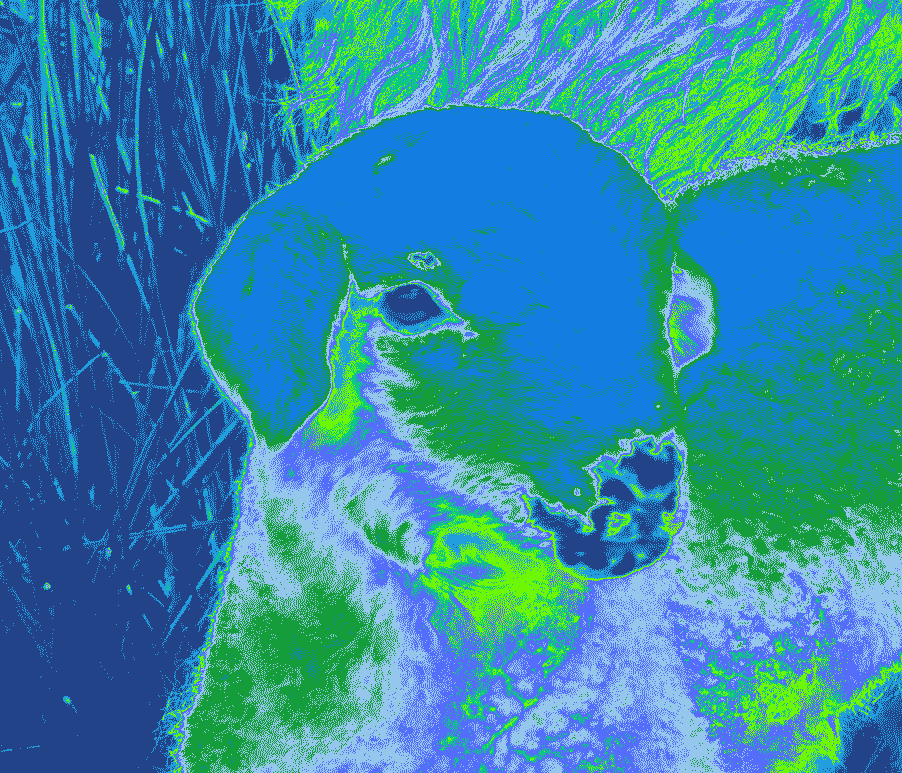
Color Table Experiment

Session 2: Today we will wrap up demonstrations for the image optimization exercise. Specifically we will place the images we processed into an HTML document and connect it to the project portal. NOTE: automatic code formatting is a feature of many IDEs and text editors that makes formatting your code simple and instantaneous. This article explains how to enable auto code formatting in Visual Studio Code. The key commands are as follows:

Windows: Shift + Alt + F
macOS: Shift + Option + F
Linux: Ctrl + Shift + I

After the demo we will begin discussing the Basic Portfolio Project. This project is designed to allow students to focus on color, design, layout, type treatments, syntax, markup, and styles while creating a web application that features your work, contact information, and an artist statement.

Assignment 3: Basic Portfolio Project
Due: Session 2, Week 8 (25 points)

Description:
Produced and design a web based portfolio. Your web application will feature a minimum of five content areas including work, artist statement, resume, and contact. The work area may breakout into multiple pages to feature up to five specific projects. It’s your job to create an identity and consistent design scheme. Incorporate images of your work, writings, and/or other media such as embedded video or audio. Build a user interface that includes universal navigation, and type treatments using HTML5 and CSS. Pay special attention to type, colors, layout, styles and positioning.

Requirements:
1. Organize your content into a minimum of five content areas
2. Create a consistent design scheme and apply it to your template
3. Include universal navigation on each page to get to every content area
4. Incorporate optimized images appropriate for the content into each page
5. Format type, images, and the positioning of the content with CSS
6. Upload to your personal webspace before class on session 2 of week 8

Points Breakdown:
6 points will be awarded for designing an effective layout for the content and interface items
5 points will be awarded for a consistent and distinct universal navigation system
4 points will be awarded for placement, optimization, preparation, and choice of images
5 points will be awarded for carefully selected typefaces and type treatment
5 points will be awarded for the clarity of your presentation


Web Design – Week 4

Adobe Kuler

Session 1: This week we will begin our discussions about the Basic Portfolio Project. I will also be assigning the Markup Exercise and demonstrating the start of the build process for the Basic Portfolio Project template. In today’s lecture we will discuss color theory for the web. Later in a demo we will look at creating a universal navigation bar that horizontally spans the header.

Basic Portfolio Project Milestone #1
Due: Week 4, Session 2 (before class starts: 2 points)
1. Be prepare to discuss your layout and design concept
2. Prepare a minimum of three sketches to illustrate your ideas
3. Prepare a color scheme using color.adobe.com

Relevant Resources:
CSS Reset
CSS Normalize

Commodore 64 Image from Wikipedia

Session 2: Today we will start by discussing the requirements for the Markup exercise.
Today’s demo will apply to the requirements for the Markup exercise. Also, during studio time be prepared to demonstrate the points listed last session for Portfolio Project Milestone #1. This milestone is required for the approval of your design concept for the Portfolio Project.

Technical Exercise 2: Markup
Due: Session 2, Week 5 (4 points)

Description:
Build a single page that profiles the first computer or gaming console you remember using. If you cannot remember the exact model choose from something around the same time period. Browse VintageComputing.com, Wikipedia, or other sites to collect the content and resources for the page. You must cite the resources that you use in the page as links. Your layout must include page-jumps for navigating to specific content areas. It must also include a header, header images, content images, an aside, and a footer. Focus on the markup. Styling will be added later during the styling exercise. Take a look at CSS Zen Garden to see how significant CSS can change the look a feel of an HTML document.

Requirements:
1. Create a profiling the first computer or gaming console you remember using
2. Use available web resources to find the content for the page
3. Cite each image and source that you use inline, in the footer, or the aside
4. Use page jumps to navigate to content areas within the page
5. Break up the page into a header, main content, aside, and footer
6. Add the files and folders to your environment and upload to your webspace

Points Breakdown:
2 points will be awarded for organizing the content for the page
2 points will be awarded for properly coding the markup in html5 format

Web Design – Week 5

Session 1: Now that your designs have been approved it is time to continue working on the template for the Basic Portfolio Project. In today’s the demo we will look at adding fluid background images, fixed backgrounds, and media embeds (video and audio) to your portfolio templates. We may also apply some fine tuning to the layout and navigation.

Relevant Resources:
Viewport Sized Typography
Can I use Viewport Units (vw, vh, vmin, vmax)?
Using vw and vh Measurements In Modern Site Design

Basic Portfolio Project Milestone #2
Due: Week 6, Session 1 (before class starts: 2 points)
1. Be prepared to show your work-in-progress on the template
2. Your markup must include areas for a header, navigation, aside, content, and footer
3. Have some rudimentary styles in place to illustrate how your design is developing

Screen Shot 2014-09-14 at 9.52.42 PM

Session 2: Today I will be looking at your Markup Exercises. We will also discuss the requirements for Technical Exercise 3: Styles. The in-class demo will apply to the requirements for the Styles Exercise below.

Relevant Resources:
Fluid Width Equal Height Columns

Technical Exercise 3: Styles
Due: Session 2, Week 6 (4 points)

Description:
Style the markup on the single page that you created for the Markup Exercise. First duplicate markup.html and name it styles.html. Leave markup.html in place without any styles applied. Create a CSS document linked to styles.html that adjusts the layout, floats the aside, floats and scales content images, places and adjusts background images, sets and formats type, defines the navigation system, specifies hover behaviors, and defines your color scheme. Don’t forget to look at CSS Zen Garden for inspiration.

Requirements:
1. Use CSS to style your markup exercise
2. Float the aside and content areas to the left or right of each other
3. Design a navigation system with hover behaviors
4. Choose a distinct typeface and use the typesetting properties
5. Create an attractive color scheme
6. Add the files and folders to your environment and upload to your webspace

Points Breakdown:
2 points will be awarded for designing an effective navigation system
1 point will be awarded for producing an inviting layout and color scheme
1 point will be awarded for capably handling the type setting

Web Design – Week 6

Keston's Portfolio
Session 1: Today we will continue demonstrating the techniques required to produce the Basic Portfolio Project. These will include looking at the box-shadow property and creating additional pages links in the site navigation. I will also assign the requirements for Basic Portfolio Project Milestone #3. During studio time I will give you each feedback on Portfolio Milestone #2.

Basic Portfolio Project Milestone #3
Due: Week 7, Session 2 (before class starts: 2 points)

1. Be prepared to show your template for final feedback in group critiques
2. Illustrate working navigation to one or more additional pages
3. Demonstrate how your markup and stylesheet differ from the in-class demos

Session 2: Today we will discuss the requirements for the Typesetting for the Web exercise. This exercise is intended to illustrate the alternatives to web-safe type as well as alternatives to rendering type as images. Placing type as images in web documents used to be the only way that non-web safe fonts could be included in navigation and content headers. Although many web designers still use this technique, it is well known that it limits accessibility and does not contribute to good SEO (search engine optimization).

Screen Shot 2014-09-21 at 1.23.11 AM

Technical Exercise 4: Typesetting for the Web
Due: Session 2, Week 7 (4 points)

Description:
Use the CSS3 @font-face rule to apply several open typefaces to a single web document. Create three headings and three paragraphs of place-holder text on the page. Use a minimum three open typefaces or fonts that you have a license to use for the headings and paragraphs. Experiment with the CSS properties line-height, and letter-spacing.

Requirements:
1. Use the CSS3 @font-face rule typeset three headlines and paragraphs
2. Download fonts from an open web resource or fonts that you are licensed to use
3. Use three or more typefaces for the headlines and paragraphs in the exercise
4. Apply several examples of the CSS properties line-height, and letter-spacing
5. Add the files and folders to your environmentand upload to your webspace

Points Breakdown:
2 points will be awarded for applying each typeface
1 point will be awarded for using line-height effectively
1 point will be awarded for using letter-spacing effectively

Relevant Resources:
CSS Text Layout Properties
Open Font Library
Font Squirrel

Designing for the Web – Week 7

Session 1: This week will be spent primarily of wrapping up the Basic Portfolio Project before in class presentations on session 2 of week 8. In particular I will demonstrate the use of the flex display method that is quickly becoming a popular and efficient way to setup column based layouts for the web. Secondly, we will discuss the components required for the Final Web Application project. These include:

1. A project proposal (summary, features, wireframes, bid)
2. Three design mockups of a single page
3. The complete and fully-functional web application

Relevant Resources:
A Complete Guide to Flexbox
Fluid Width Equal Height Columns

Session 2: Please be prepared to show your Basic Portfolio Project for group critiques and feedback today as described in Basic Portfolio Project Milestone #3. If time permits we will also discuss the requirements for the Final Web Application component of the final project as shown below.

Assignment 4: Final Web Application (Component 3 – Webapp)
Due: Before Finals Period (22 points)

Description:
Using the HTML5 web standards we have learned so far and other techniques that will be demonstrated throughout the semester, design and build an interactive web application with a minimum of five pages in primary navigation and four pages in secondary navigation. The content for the project may be of three possible categories:

1. Build the project for a real organization that is need of a webapp or webapp redesign.
2. Build the project for a real business that is need of a webapp or webapp redesign.
3. Create an informational webapp on a topic of your choice that you are passionate about.

Important: If your project is a business or organization ensure that it is one with which you are closely associated.

Consult with me about your concept no later session 1 of week 9 so that I can approve your ideas. All content must be either generated by you, the organization/business, or cited to credit the original source.

Requirements:
1. Create a minimum of nine content areas (pages or areas accessed through navigation) for the webapp.
2. Primary and secondary navigation will allow visitors to get to all content areas.
3. Include a minimum of four of the following types of media: graphics, photos, video, sound, motion.
4. Images and text content must be your original artwork, unless cited correctly and the licenses allow for use.
5. The webapp must be fully interactive – navigate to any page from any page
6. Upload the project to your webspace before the finals period (see syllabus for final date/time)

Points Breakdown:
4 points will be awarded for designing an effective layout for the content and interface items
3 points will be awarded for a consistent and distinct primary/secondary navigation system
3 points will be awarded for placement, optimization, preparation, and choice of images
3 points will be awarded for the use of media (graphics, photos, video, sound, motion)
3 points will be awarded for developing meaningful and accessible content for the user experience
3 points will be awarded for carefully selected typefaces and type treatment
3 points will be awarded for the clarity of your presentation

Relevant Resources
http://aim.johnkeston.com/wp-content/uploads/2012/10/wp0103.pdf

Web Design – Week 8

Session 1: Today we will discuss the requirements for the Project Proposal component of the Final Web Application. The remaining time will be spent on individual consultations for finalizing your Basic Portfolio Project or Final Web Application concept approvals.

wireframe

Assignment 4: Final Web Application (Component 1 – Project Proposal)
Due: Session 2, Week 9 (3 points)

Description:
Write a project proposal that includes a title page, project summary, feature list, wireframes, and bid. Include a minimum of five wireframes. Breakdown the bid into estimated hours for content, design, markup, styles, and interaction. Use Google Docs, Word, or Illustrator to create the proposal. Export the proposal as a PDF file and submit before class starts on session 2 of week 9.

Requirements:
1. Start the proposal with a title page (include your name, project name, my name, class title, etc.)
2. Secondly write a project summary that describes the scope of the project in two to five paragraphs
3. Thirdly insert a list of project features and a brief description of each feature
4. Next include a minimum of five wireframes each on a separate page with brief descriptions
5. Finally write a project “bid” detailing the estimated hours and cost of the project
6. Upload a PDF of the document to Canvas by session 2 of week 9

Points Breakdown:
The proposal constitutes 3 points of the grade for the final project

Session 2: Basic Portfolio Project Presentations.

Web Design – Week 9

Session 1: We will start today with a brief post-mortem discussion regarding the Basic Portfolio Project. Following that, if you have not yet consulted with me about your final project please do so during our scheduled studio time today. Otherwise plan on showing me your project proposals so far for feedback.

Design Mockup's Look Like the Real Thing!

Relevant Links:
Moqups
Balsamiq
Lucidcharts

This week’s demos will focus on techniques for creating secondary navigation

Session 2: Project Proposals are due today. We will also discuss the requirements for the Design Mockups component of the Final Web Application project. During the in-class demonstration we will look at adapting our template for the final project and creating some secondary navigation items under the primary navigation bar.

Relevant links:
CSS Dropdowns on W3Schools
Create a CSS3 Dropdown Menu
Another

Assignment 4: Final Web Application (Component 2 – Design Mockups)
Due: Session 2, Week 10 (3 points)

Description:
Design three mockups of a single page for in-class critiques on session 2 of week 10. Mockups resemble the final web application’s interface and layout while wireframes are simplified boxes and text. Each mockup should include layout, color scheme, typesetting, graphics, and images. The mockups may differ from each other in the following ways: try different color schemes, select different typefaces and typesetting parameters, and experiment with the layout.

Requirements:
1. Design a minimum of three mockups for critique
2. Include distinct layout, color scheme, typesetting, graphics, and images for each mockup
3. Use Photoshop, Illustrator, or HTML/CSS to design the mockups
4. Render the mockups as either web graphics (PNG, PDF, GIF, JPEG) or HTML templates
6. Upload a the documents to Canvas before class on session 2 of week 10

Points Breakdown:
The mockups constitute 3 points of the grade for the final project

Web Design – Week 10

Session 1: Today’s inclass demonstrations will involve typical uses for CSS3 transitions and animations. CSS3 transitions and animations are an easy and generally accessible way to integrate motion into your designs. Most transitions are initiated via the hover pseudo class. Animations begin when the page loads. Uses include: navigation, thumbnail fades, image captions, sliders, etc.

Relevant links:
CSS Transitions of W3Schools
CSS Transition Tutorial
CSS Filter Property
Interactive Guide to CSS Transitions
Trigger CSS3 Transitions on Click
MDN: Using CSS Transitions

Session 2: Today we will be critiquing your design mockups. Please be prepared to show your mockups to your assigned group members. I will visit each group and provide additional feedback.

Final Web Application Milestone #1
Due: Week 11, Session 2 (before class starts: 2 points)

1. Be prepared to show your template work-in-progress
2. Demonstrate navigation with both primary and secondary items
3. Illustrate your ability with fluid layout, floats, asides, and typesetting

Web Design – Week 11

Session 1: This week we will begin looking at ways to make our templates responsive to devices with different dimensions like desktops, laptop, tablets, and mobile phones. One of the best techniques available are media queries. Essentially, media queries allow us to insert logic into our CSS that changes the properties assigned to certain rules when the maximum or minimum screen width goes above or below a specified value.

CSS Media queries allow you to target CSS rules based on – for instance – screen size, device-orientation or display-density. This means you can use CSS Media Queries to tweak a CSS for an iPad, printer or create a responsive site. Open the overview to see the complete list, and find for each media query if your browser applies these.
– cssmediaqueries.com

For media queries to work properly on mobile devices is it necessary to instruct the browser to identify the viewport width as the device width. This can be done by adding the following meta tag to your head tag in all of your HTML pages.

<meta name="viewport" content="width=device-width, initial-scale=1" />

Relevant resources:
MDN: CSS media queries
Gallery of Sites Using Media Queries
Media Queries Explained on W3Schools

Session 2: Many more CSS properties and techniques can be used to enhance your work. This article from CSS-trick.com explores a wide variety examples. In addition to digging a little deeper into media queries let’s look at CSS variables “var()” and “position: fixed”.

https://css-tricks.com/lets-look-50-interesting-css-properties-values

After the demo the first of several Final Web Application Milestones are due (Final Web Application Milestone #1). Please be prepared to show me what you have produced for feedback during studio time.

Web Design – Week 12

Session 1: This week we will look at several examples of Javascript image galleries. These galleries may take the form of a simple “lightbox,” or they may be implemented as responsive image sliders with slideshow, animation, and many other adjustable options.

Relevant Resources:
LightBox
Fancybox
Fancybox Documentation
Flexslider
An article with many jQuery Gallery Plugins
12 JavaScript Gallery Plugins

Session 2: Let’s continue demonstrations of Javascript image galleries. Also, please look a the following requirements for the next milestone.

Final Web Application Milestone #2
Due: Week 13, Session 2 (before class starts: 2 points)

1. Be prepared to show your template work-in-progress
2. Illustrate the use of a jQuery image gallery on a single page
3. Demonstrate your working navigation system linking to three or more pages

Web Design – Week 13

Session 1: Today we will take a look at creating simple HTML forms that can be connected to your email address through the FormSpree.io API. If time permits we will also demonstrate techniques to embed media, apply smooth scrolling, and display vector based social media icons.

Smooth scrolling can now be handled in CSS like so:

html {
  scroll-behavior: smooth;
}

The only advantage of using this Javascript is that you can adjust the speed of the smooth scrolling.

$( document ).ready(function() {
  // Select all links with hashes & remove links that don't actually link to anything
  $('a[href*="#"]').not('[href="#"]').not('[href="#0"]').click(function(event) {
    if ( location.pathname.replace(/^\//, '') == this.pathname.replace(/^\//, '') && location.hostname == this.hostname ) { // On-page links
      var target = $(this.hash); // Figure out element to scroll to
      target = target.length ? target : $('[name=' + this.hash.slice(1) + ']');
      if (target.length) { // Does a scroll target exist?
        event.preventDefault(); // Only prevent default if animation is actually gonna happen
        $('html, body').animate({
          scrollTop: target.offset().top
        }, 500, function() { // Callback after animation & must change focus!
          var $target = $(target);
          $target.focus();
          if ($target.is(":focus")) { // Checking if the target was focused
            return false;
          } 
          else {
            $target.attr('tabindex','-1'); // Adding tabindex for elements not focusable
            $target.focus(); // Set focus again
          };
        });
      }
    }
  });
});

Relevant Links:
The Basics of HTML Forms on W3Schools
Web3Form API to Send Email from HTML forms
Smooth Scrolling Code Snippet
FontFabric Social Media Pack

Final Web Application Milestone #3
Due: Week 14, Session 2 (before class starts: 2 points)

1. Be prepared to show your nearly finished final project in group critiques
2. Take notes and consider the suggestions of your classmates
3. Give your classmates feedback on their work-in-progress 

Session 2: Today Final Project Milestone #2 is due. Also, any ideas that you have for quick demos will be considered. If time allows let’s take an introductory look at the Google Maps API.

Note: Don’t forget about your footers! Things to consider for the footer include: a site map (links to all the content on your site), additional resources (links to related websites and content), contact information (who are you?), social media icons (easily share the site).

Web Design – Week 14

Session 1: Today we will wrap up demonstrations for the semester. I have several concepts ready to go, but please be prepared with suggestions on topics that might be useful for the entire class.

Create a Parallax Effect Using CSS
Adding a Google Form to Your Web Application
Using CSS Filters for Gallery Thumbs

Session 2: Final Project Milestone #3 (final group critiques) are scheduled for today. Any remaining time will be available to ask questions and get feedback on your final project before final presentations. Also, please take a few minute to complete the IDEA survey for this class at https://stthomas.edu/idea.

Web Design – Finals Period

Final Project Presentations

Everyone is required to attend the final presentations. Missing the final presentations will apply to your grade as an unexcused absence and no points for presenting. The presentation is worth 2 out of the 35 points for the final, or 6% of your grade for the final project. The finals period schedule is listed below:

Friday, May 20th 2022, 10:30AM – 12:30PM in OEC 312

1. Introduce yourself (major, interests, etc.)
2. Describe the concept for your final web application
3. Demonstrate the features (give a tour) of the web app
4. Feedback

Thanks everyone and have a great holiday!